-
Operations
- Using the Genius Checklist System (Web Based)
- Using the Genius Security Checklist System (Mobile App)
- Using the Genius Cleaner Checklist System (Mobile Website)
- Work Orders
- Work Orders - Corrigo Integration
- How to approve Work Orders that have been rejected - For State Managers
- Service Provider Staff – Quote Submission and Work Completion Evidence
- Planned Preventative Maintenance (PPM)
- Assign a CSM to a Site
- Assign a Site Manager to a Site
- Escalations
- Processing a Missed Clean Credit
- Processing a Missed Clean Makeup
- QA Records
- QA Report Client Recipient
- QA Report Settings
- Timesheet Lock
- Incident Register
- Incident Register on Mobile App (For employee)
- Checklist Reports
- Bulk Accepting Work Orders
- Missed Service Report
- Show all articles (7) Collapse Articles
-
CRM/BD
-
Roster/Timesheets
-
HR
- Adding Client Induction Documents
- Check Pending/Completed Conversions
- Conversion of Employment
- Create Leave Requests on behalf of Field Staff/Cleaners
- Leave Request Process
- Partial Leave
- HR Conversion of Employment
- HR FAQ
- HR Onboarding – How to upload a file
- HR Onboarding Admin Guide
- HR Onboarding Guide
- HR Schedule
- Onboarding – Updating Your Ezko Onboarding Record
- Onboarding – Updating Your SKG Onboarding Record
- Onboarding - Updating TFN
- Onboarding – Updating Bank Details
- Onboarding – Uploading Super Form
- Onboarding – Uploading Tax Form
- Onboarding Invitation Logs
- Onboarding Workflow
- Remove-Cancel Onboarding Invitation
- Schedule
- SP Onboarding
- SP Onboarding - Continue/Edit your onboarding record
- Terminating a Service Provider Staff
- Terminating an Employee
- Corporate Onboarding Guide
- Corporate Onboarding Admin Guide
- Show all articles (13) Collapse Articles
-
Other
-
Time and Attendance
Using the Genius Checklist System (Web Based)
Welcome to the Genius checklist system! This system is designed to streamline your workflow, ensuring tasks are completed accurately and efficiently. To get started, you’ll first need to log into Genius where you will access site personalised checklist.
These instructions are for the web based for the mobile app instructions click here
Once logged in, navigate to the checklist section. Here, you will find a list of tasks assigned to you or related to your project. Each checklist item is designed to be marked off as you complete it. It’s essential to regularly check that each task is properly marked when completed, as this will keep the system updated and provide real-time tracking of your progress.
The key steps are:
- Log in to Genius with your credentials.
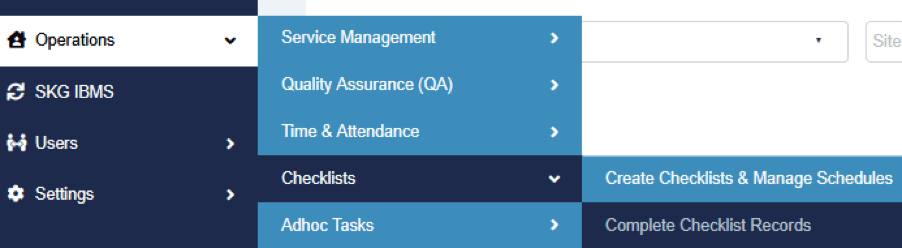
- Access your Checklist by going to “Operations->Checklists->Complete Checklist Records”
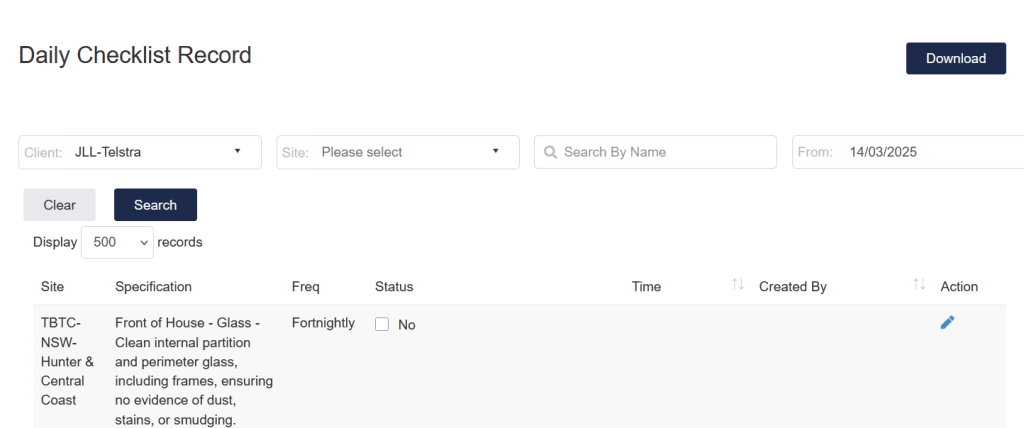
- Choose Client e.g. JLL-Telstra and click on “Search”
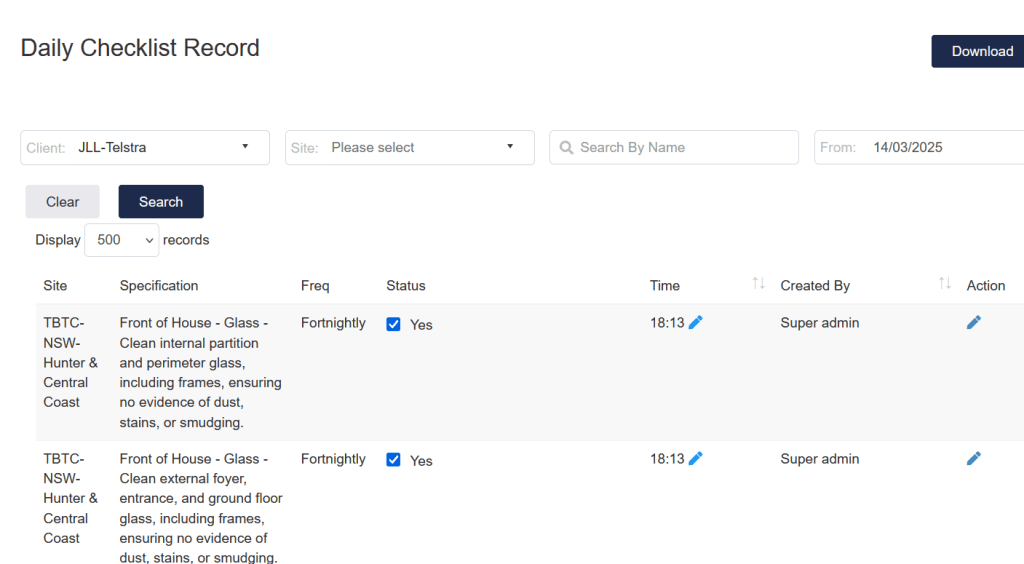
- Tick the items which have completed
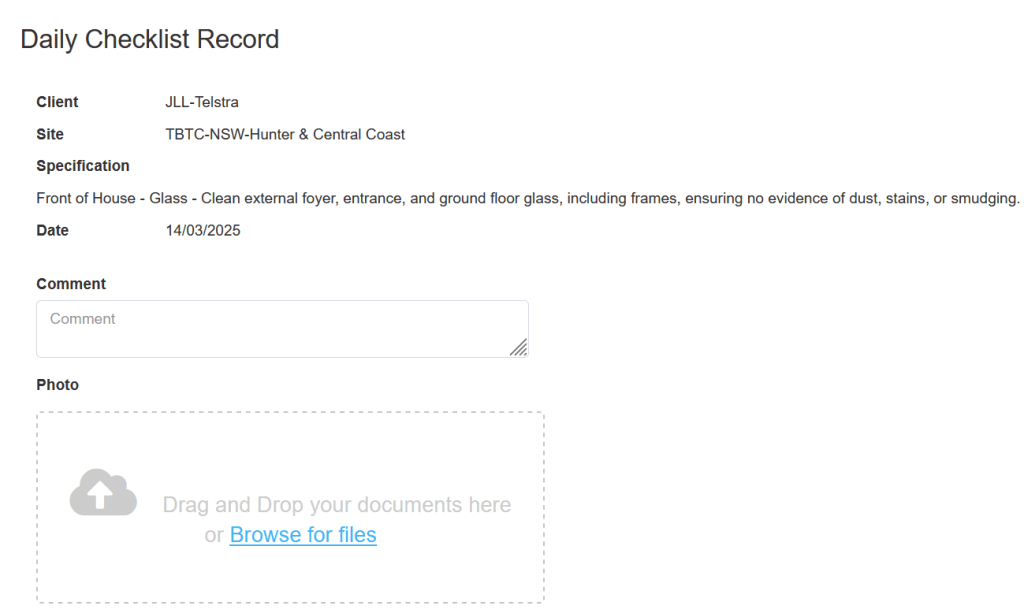
You can also add a comment or upload a photo using the pen icon