How Can We Help?
Work Order Management
Service Providers can manage and action Work Orders (WO) in the SP portal.
- When a new quote is requested for a WO by the admin, SP Managers will receive an email with the link to the WO.
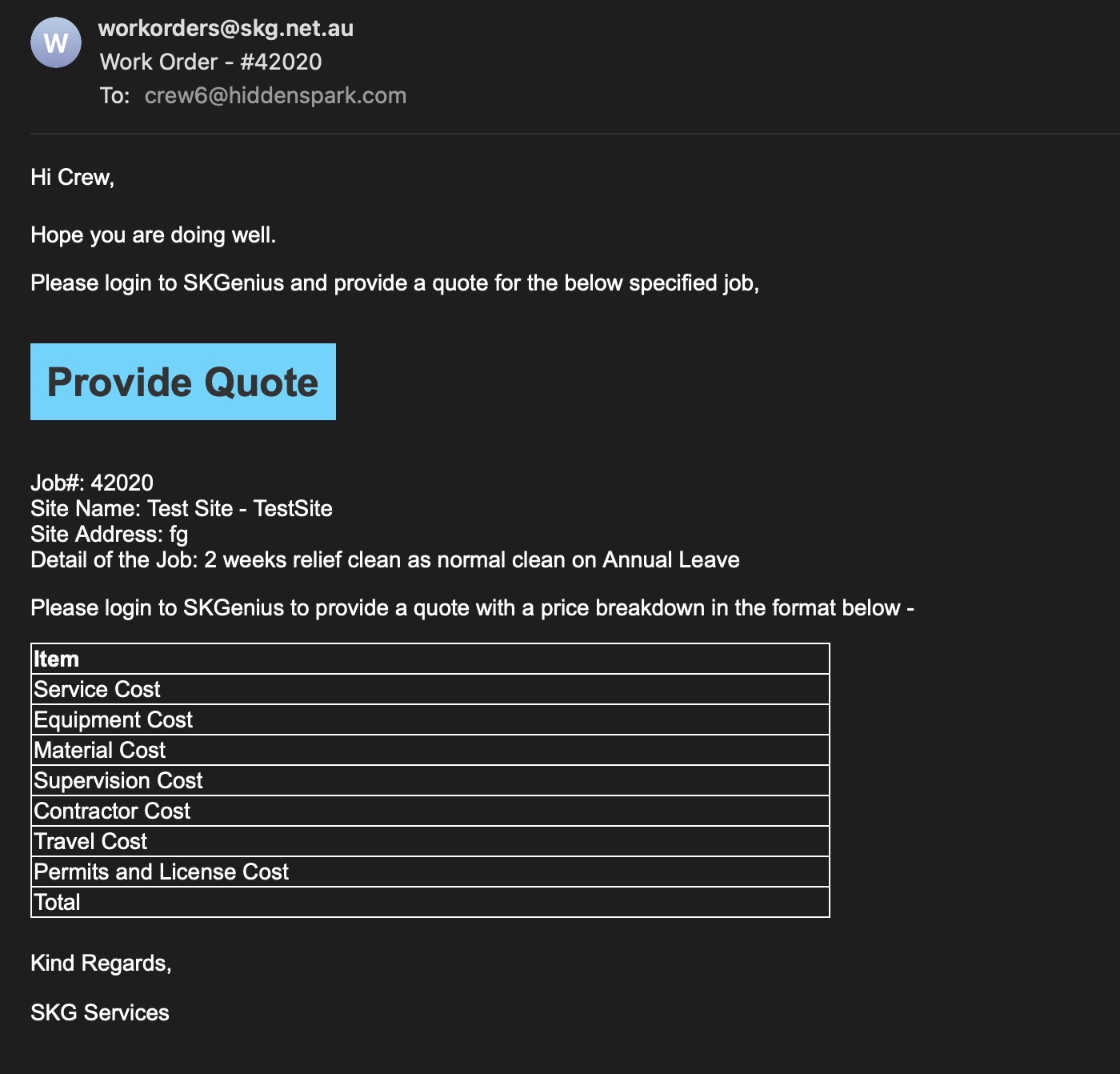
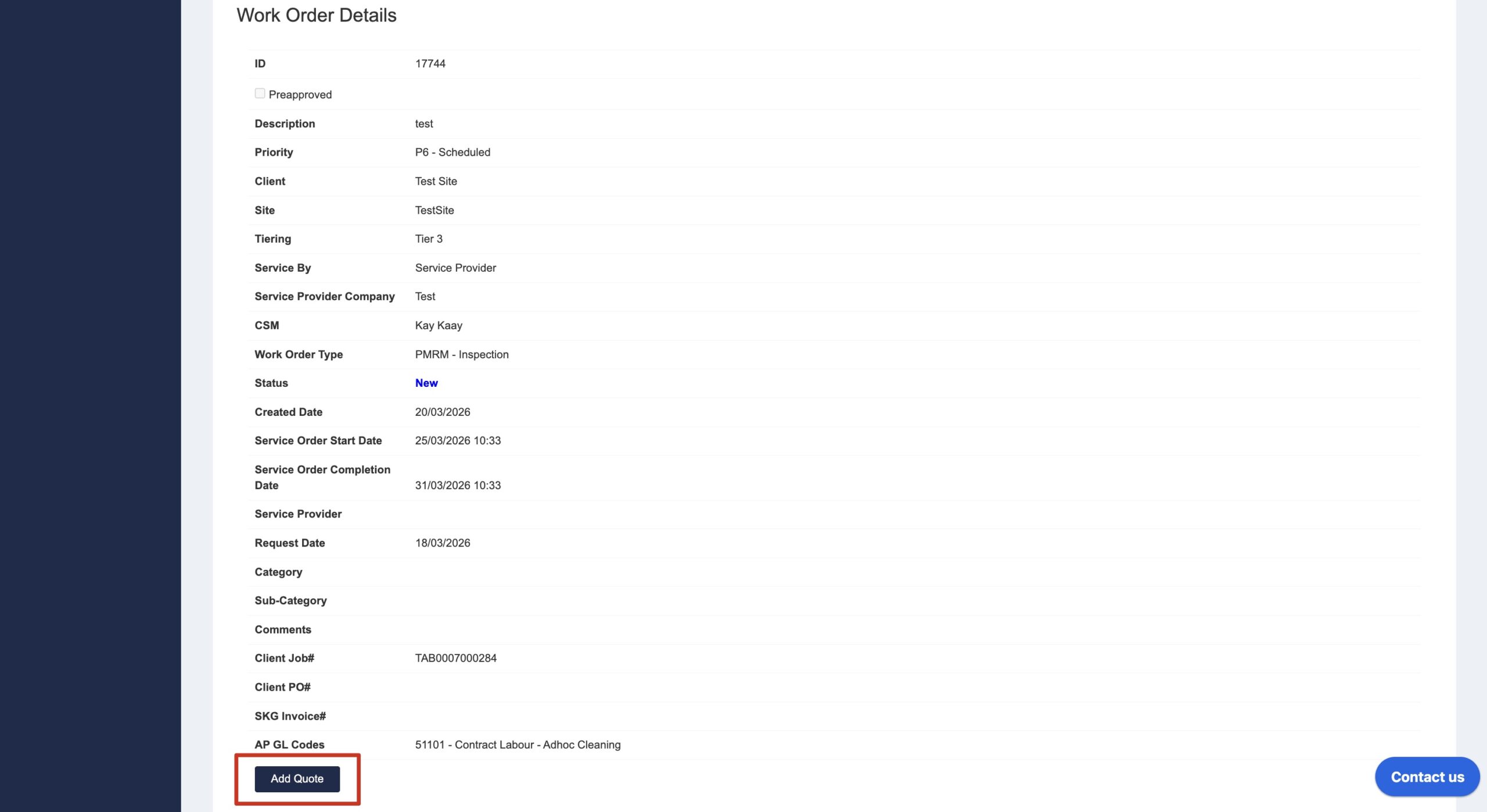
- Click “Provide Quote” to open the WO details page or login to the SP portal then > Work Orders to check the WOs waiting for action.
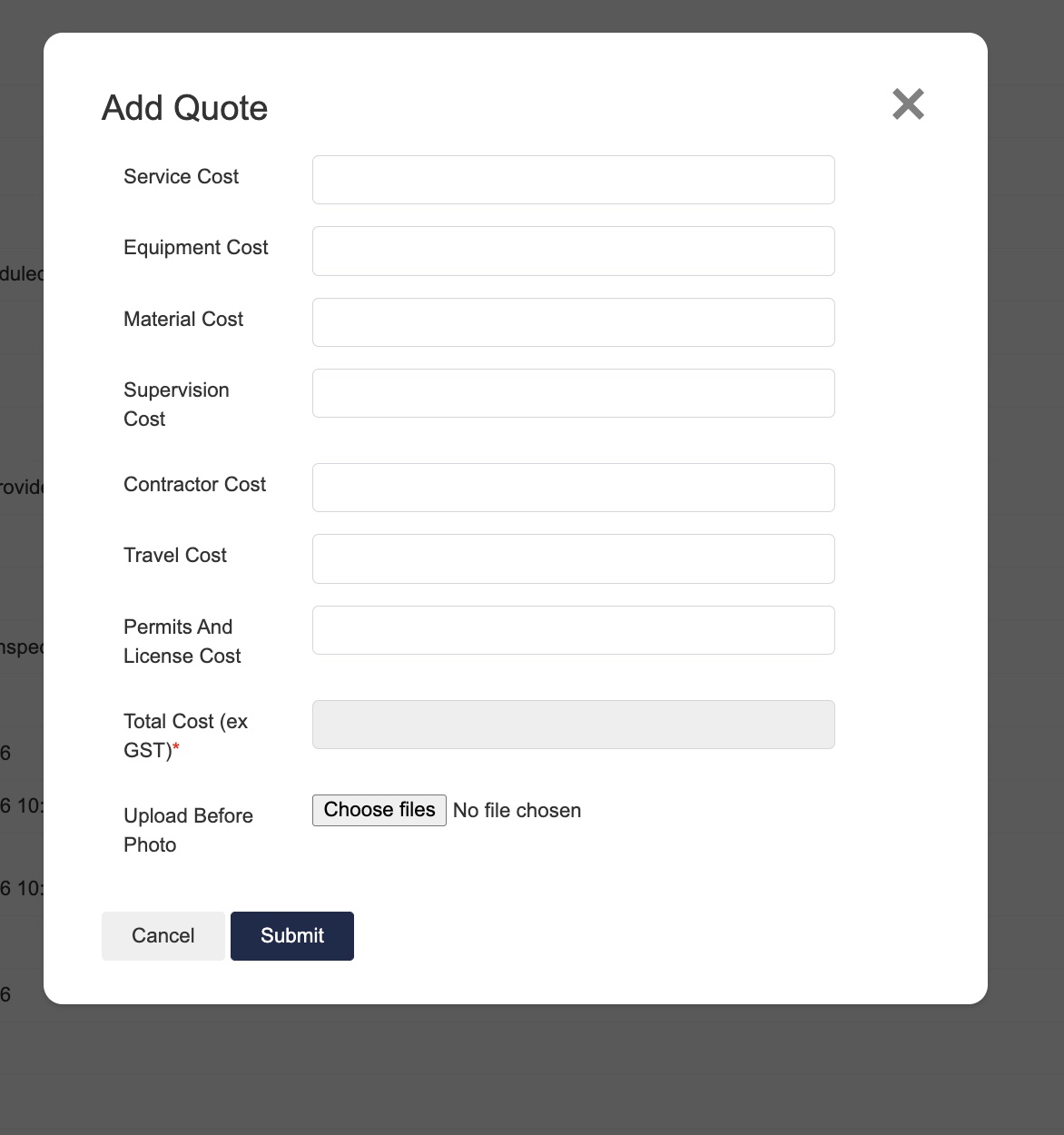
Add quote details and before photos if applicable.
Enter details and click “Submit”.
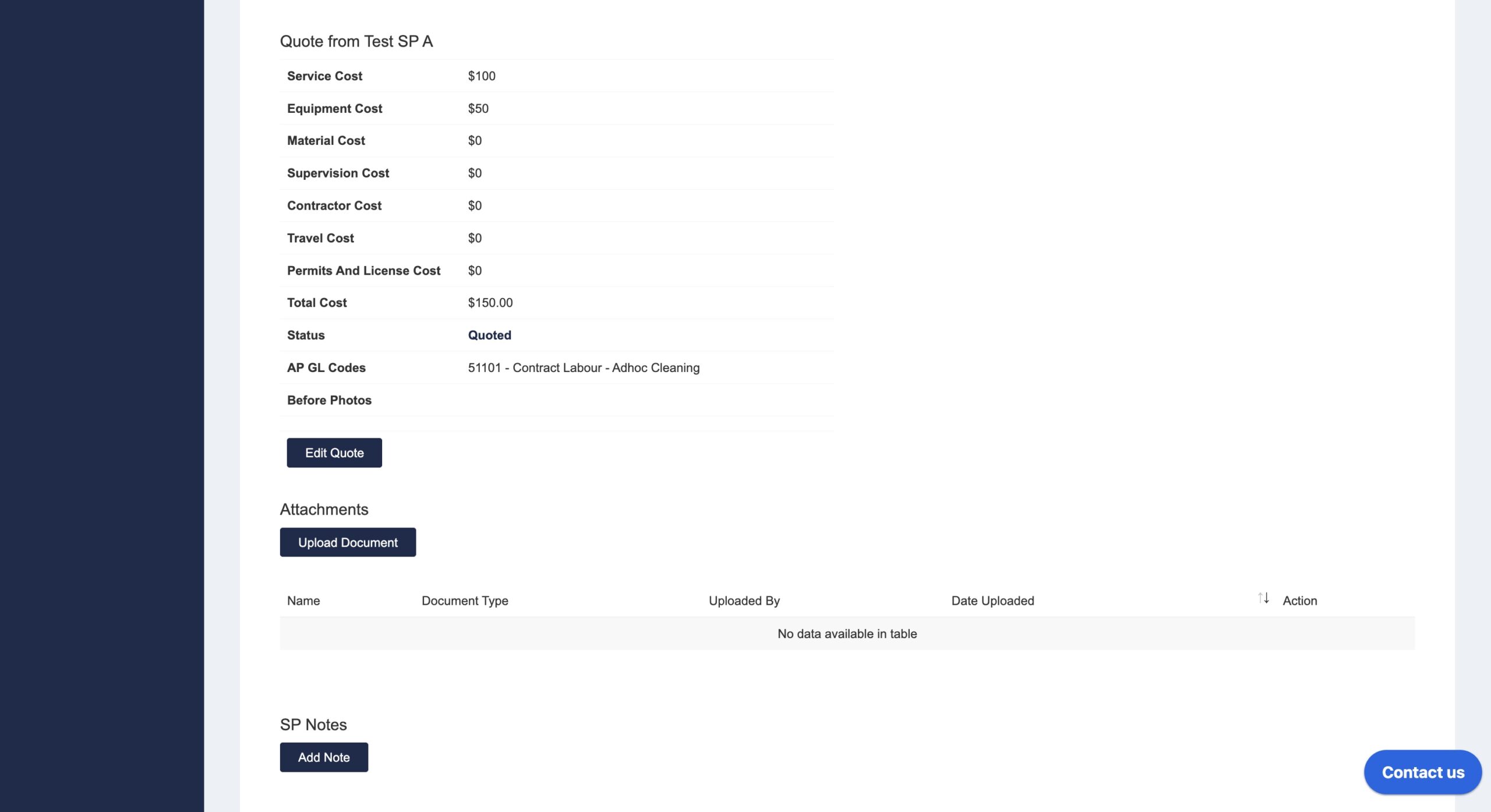
- Once the quote is added, it will be sent to the admin portal and wait for approval.
You can edit the quote if needed.
- If the quote is accepted and a service order created, the status of the WO will be changed to “Work Approved for Completion”.
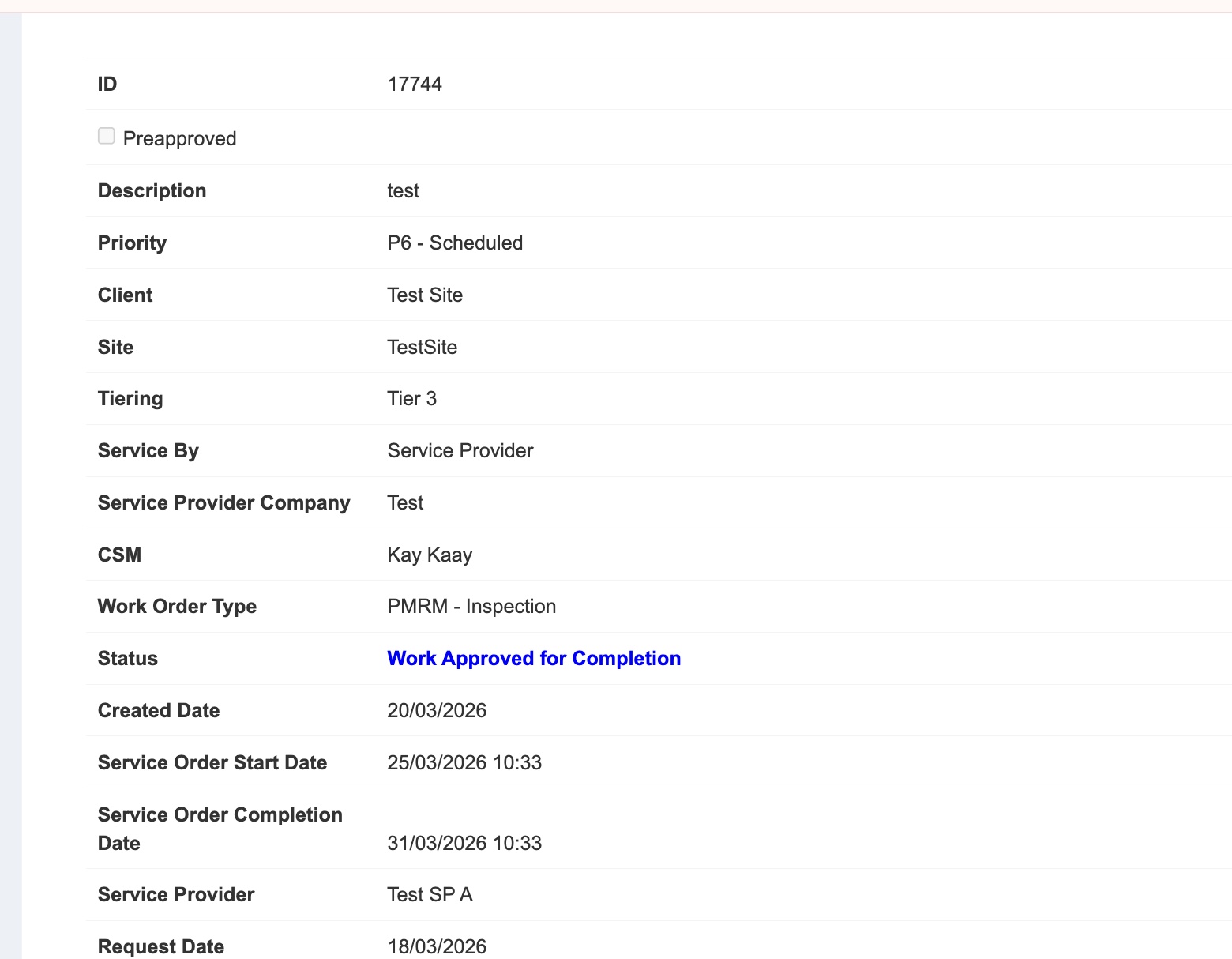
- You can choose to accept or reject the WO.
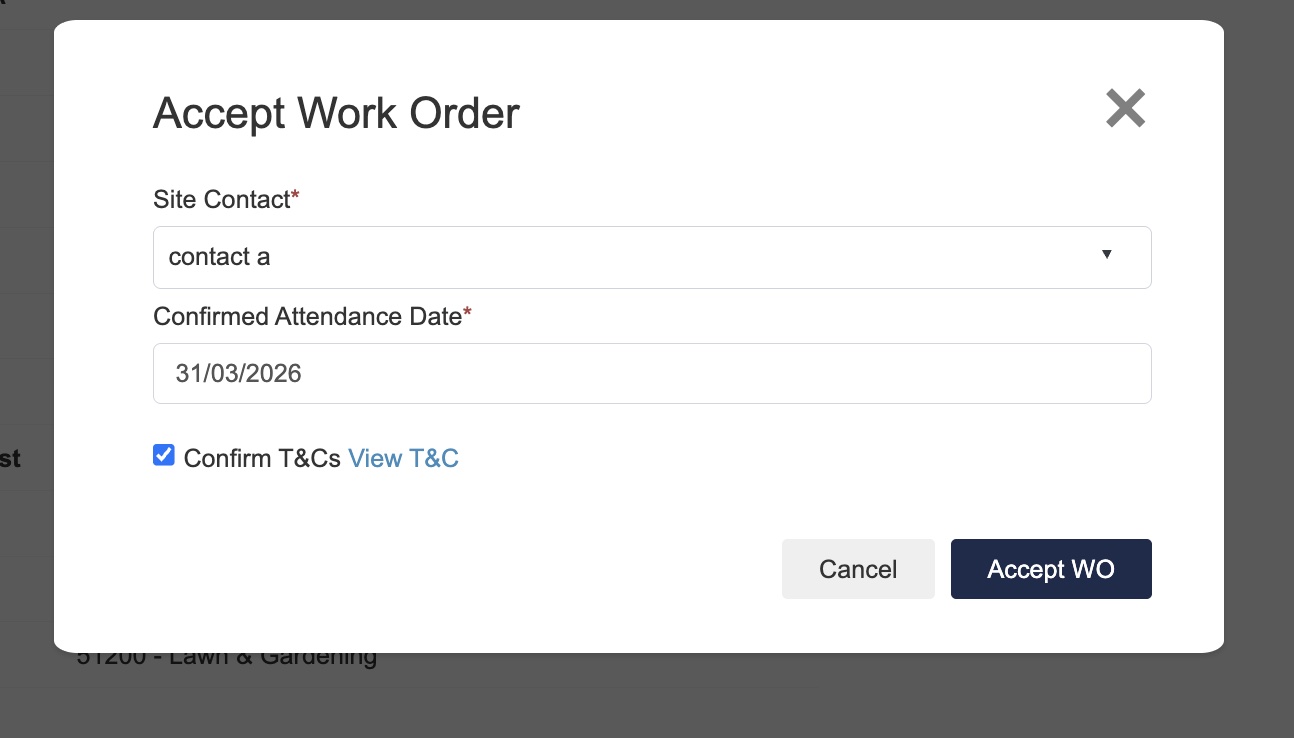
- Click “Accept WO” to add acceptance details.
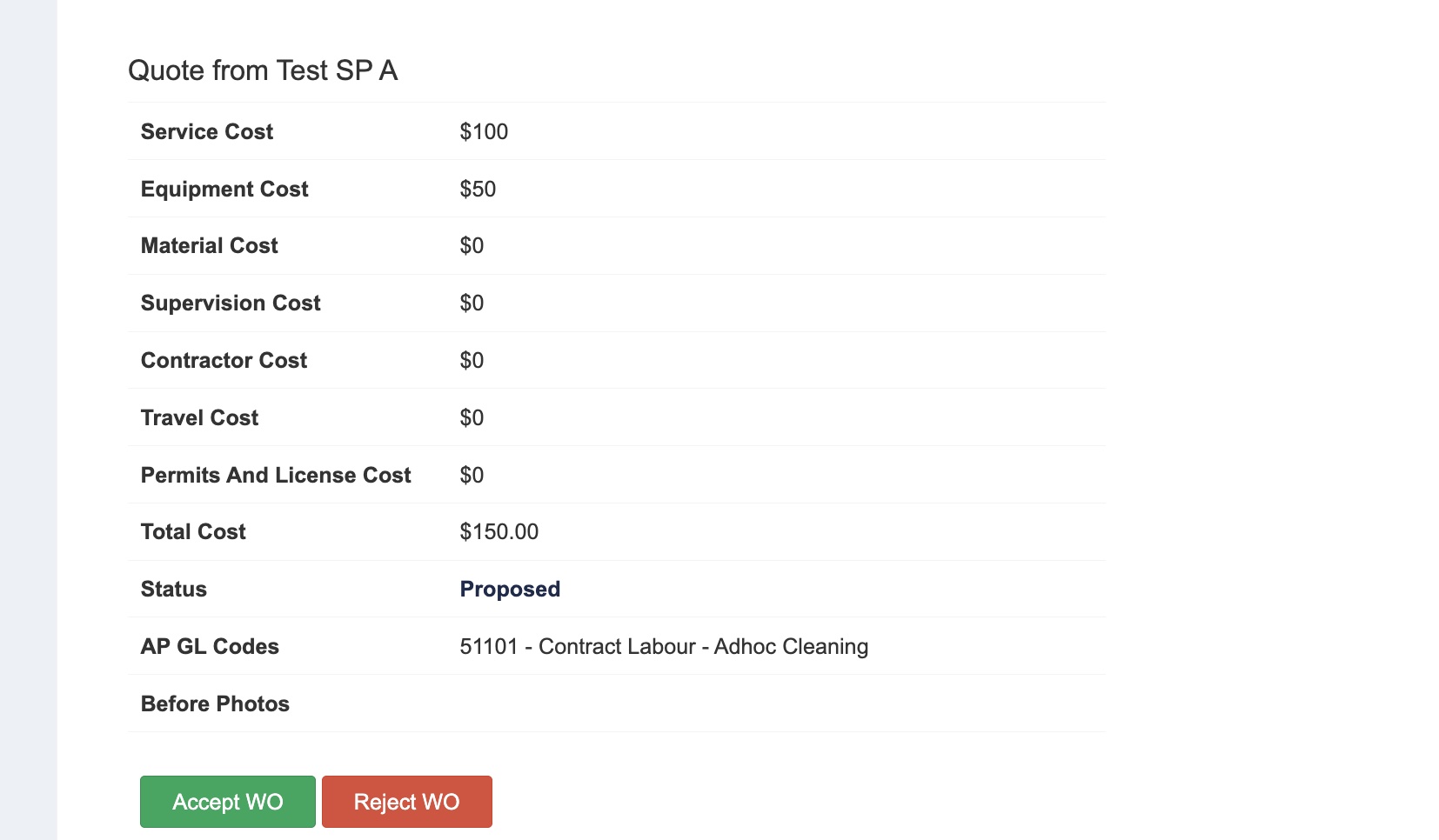
Select Site Contact and Attendance Date.
- Or reject work order and add reason.
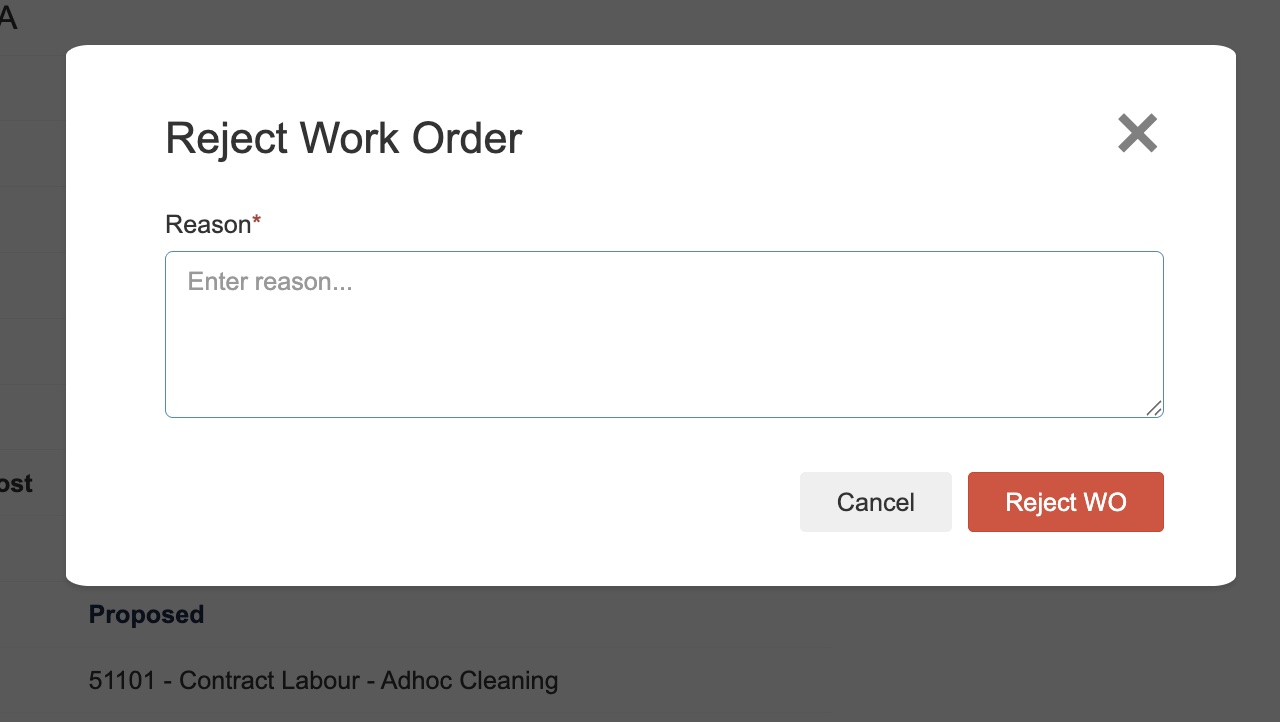
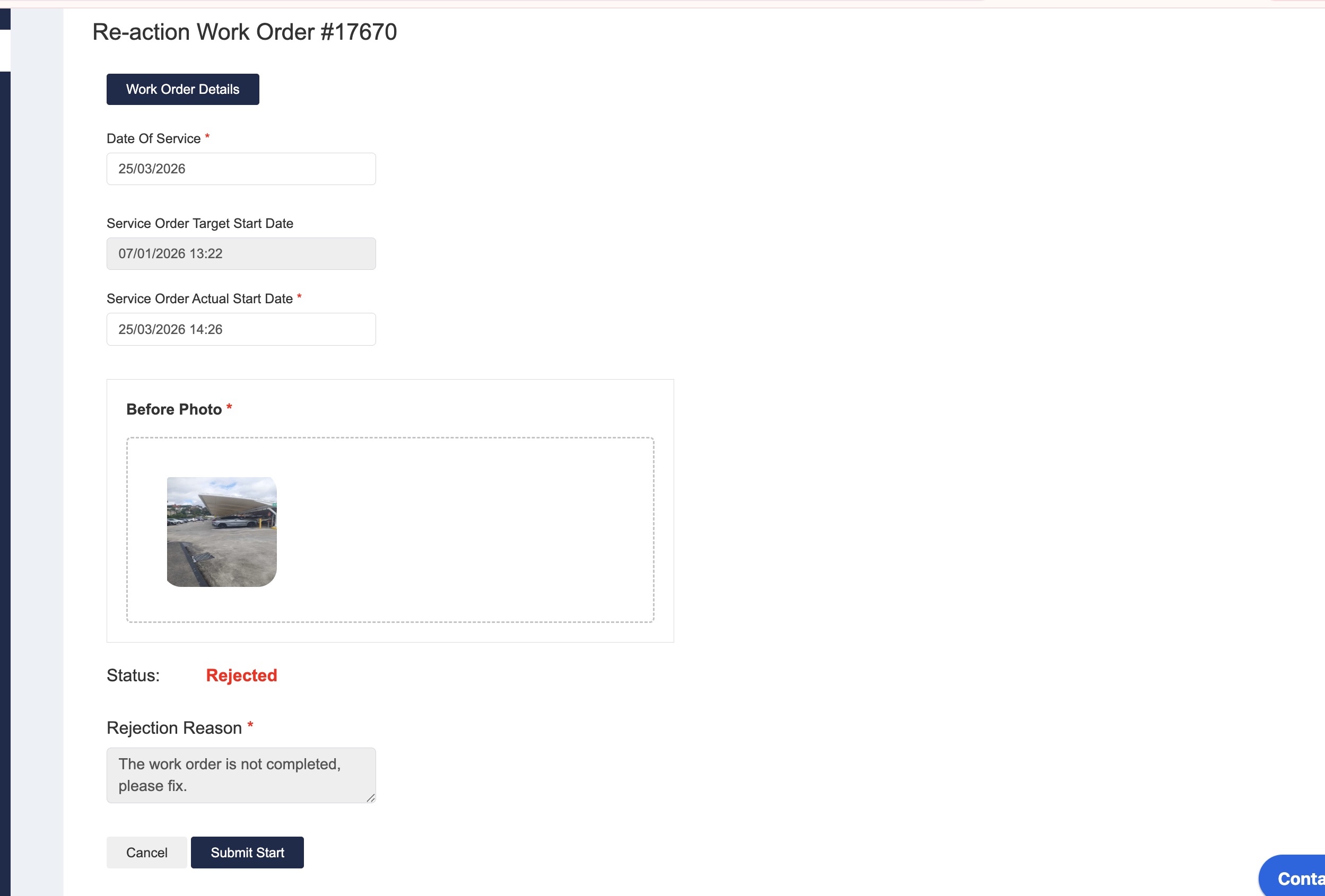
If the WO is rejected, it will be mark as Rejected and no further actions needed.
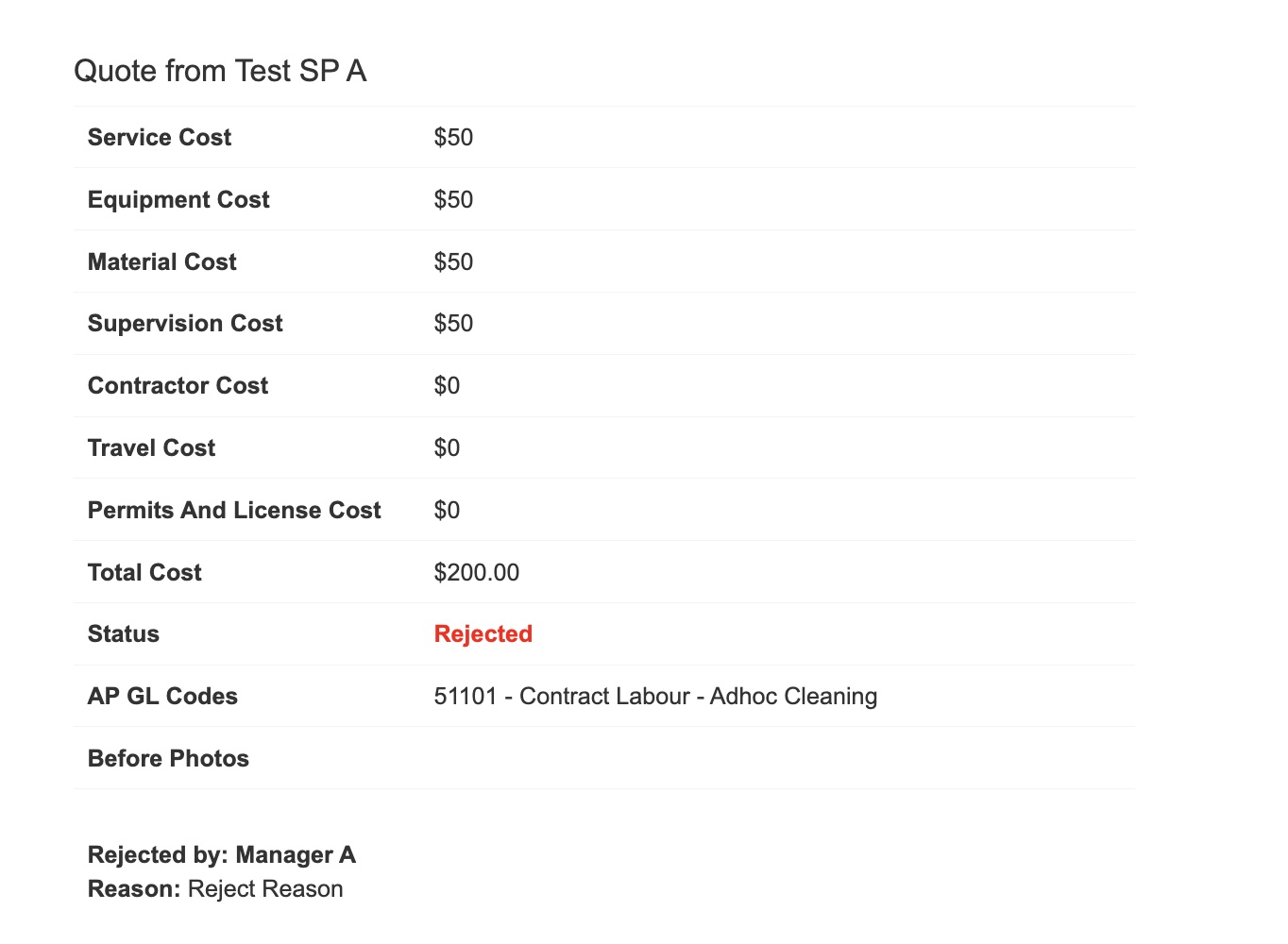
- Click “Accept WO” to add acceptance details.
- If the work order is accepted, you can start to work on it.
- Click “Action WO”
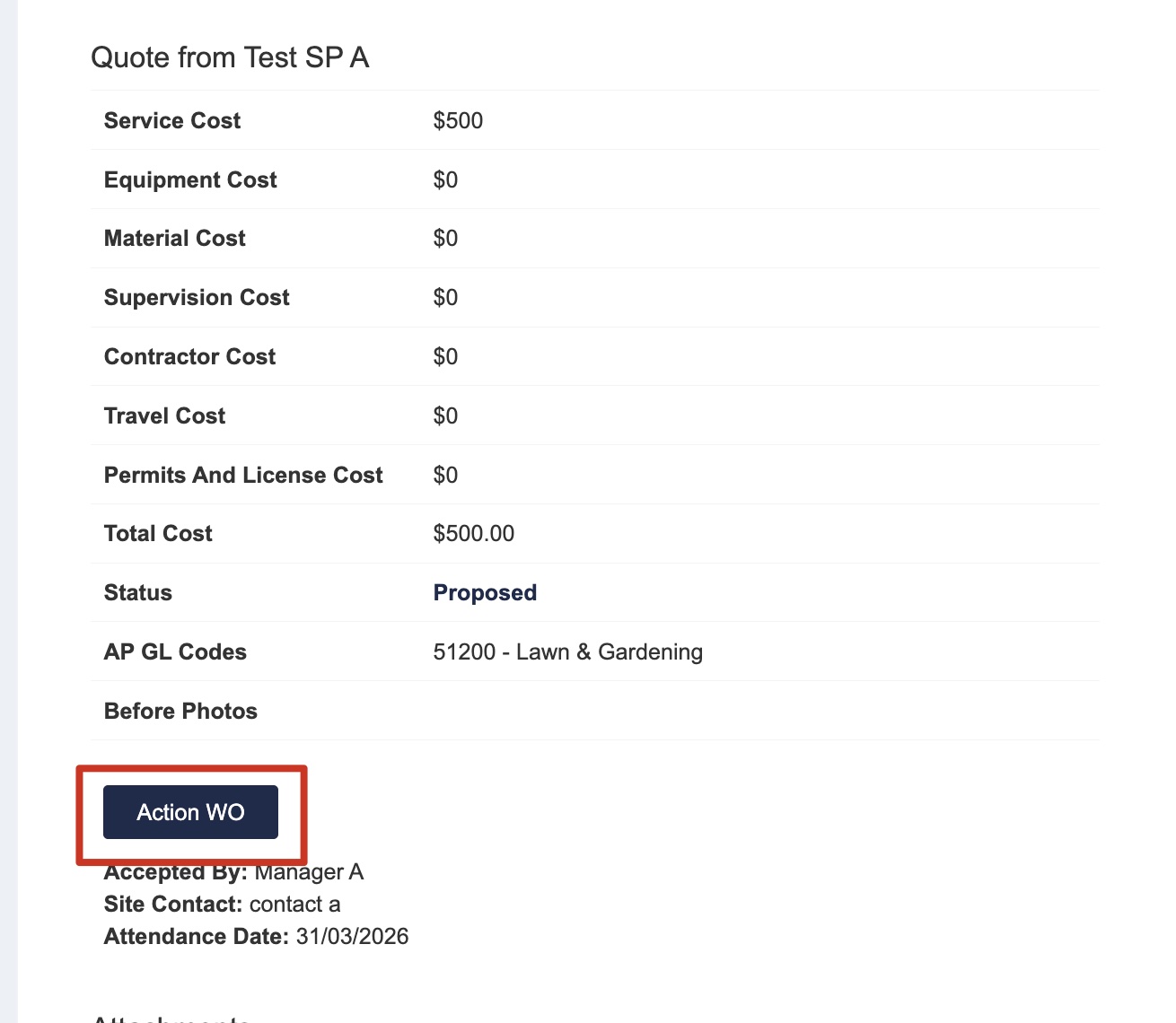
- And enter completion details.
Start details and completion details can be added separately.
For star and completion details, add the actual start/complete date and photo evidence.
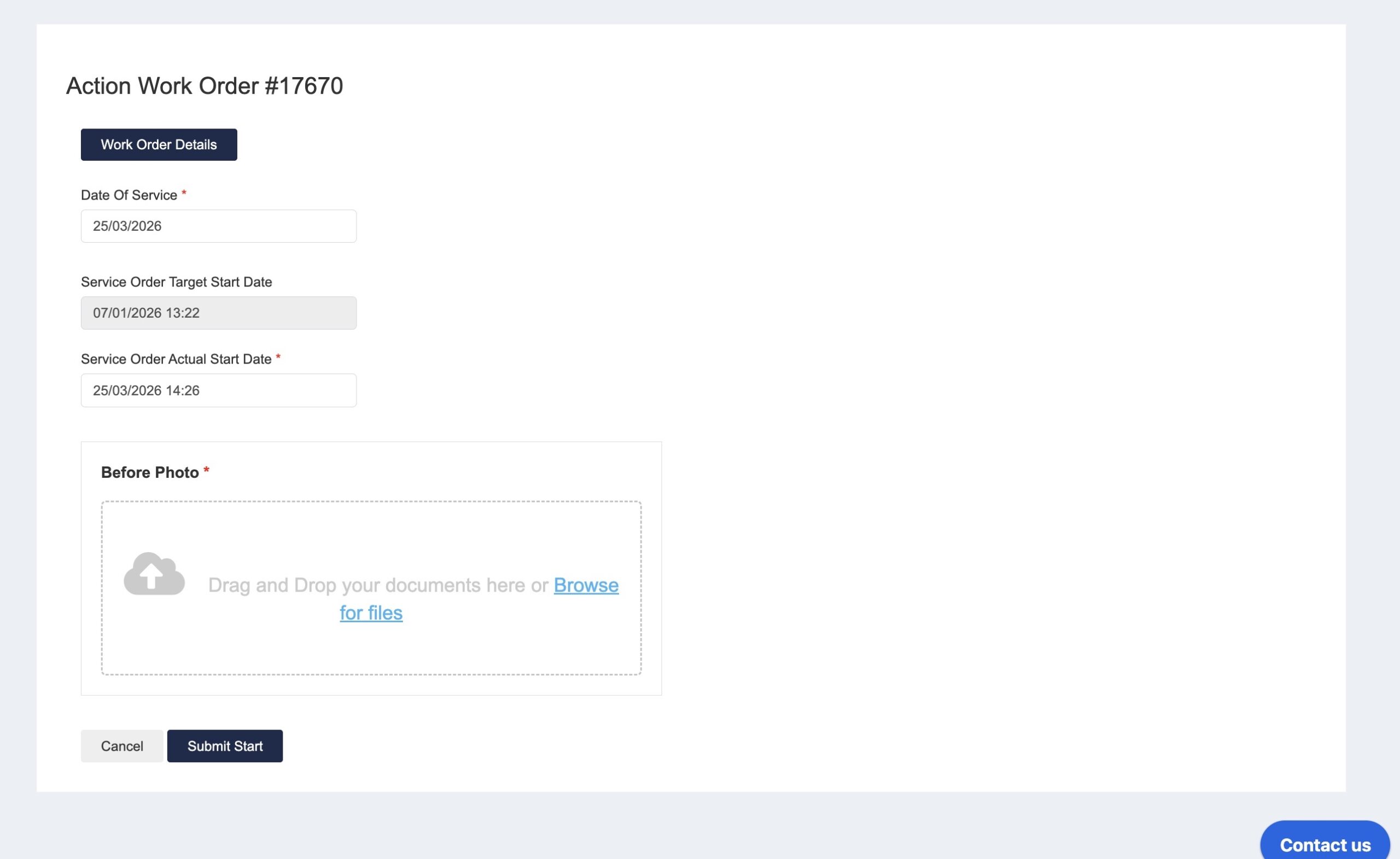
Submit completion.
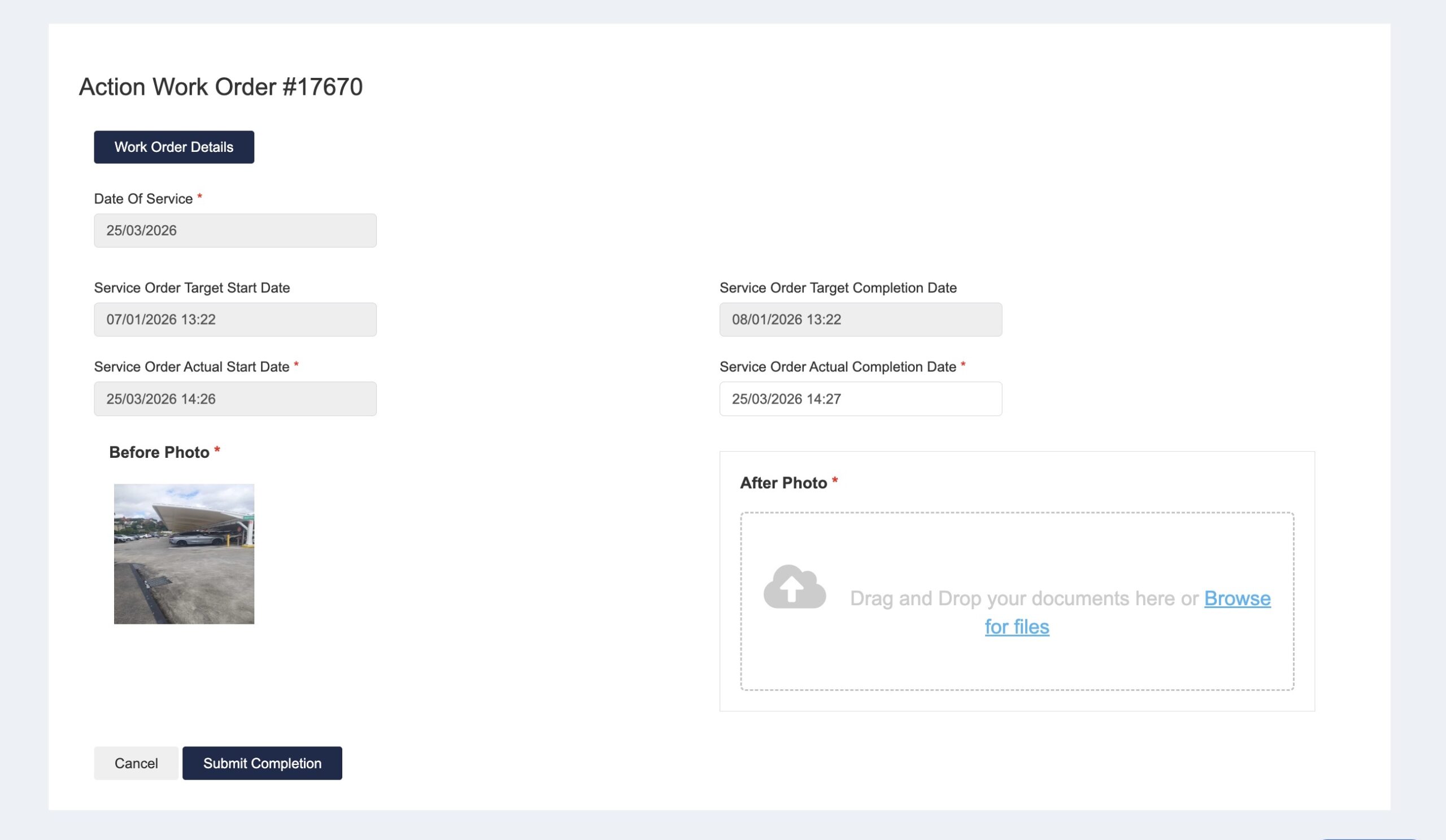
- Once the completion details is added, they’ll be sent to the admin portal for Approval.
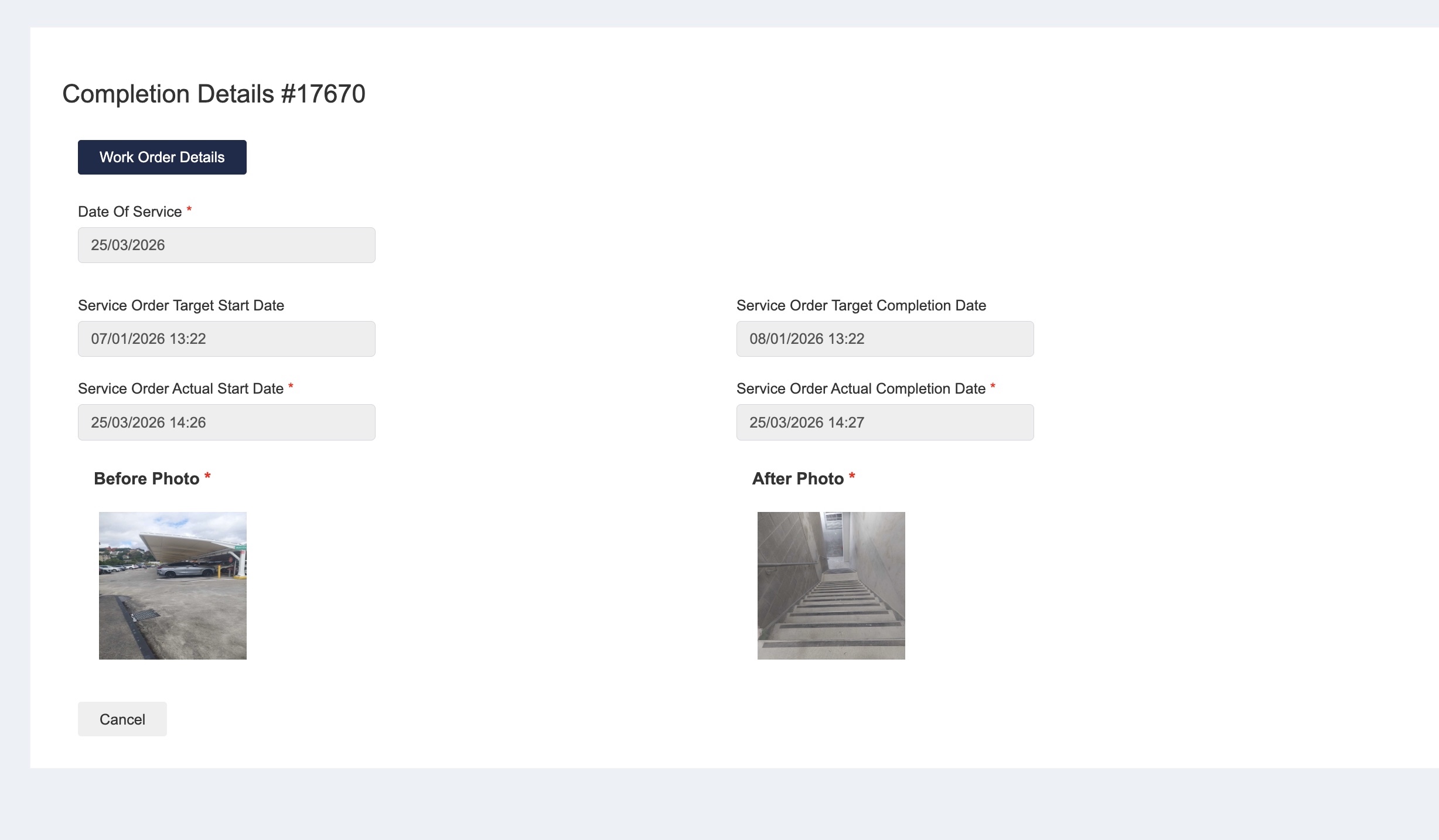
- Click “Action WO”
- If the Work Order is approved, no further action needed.
If the work order completion is rejected, then you need to resubmit the completion evidence.
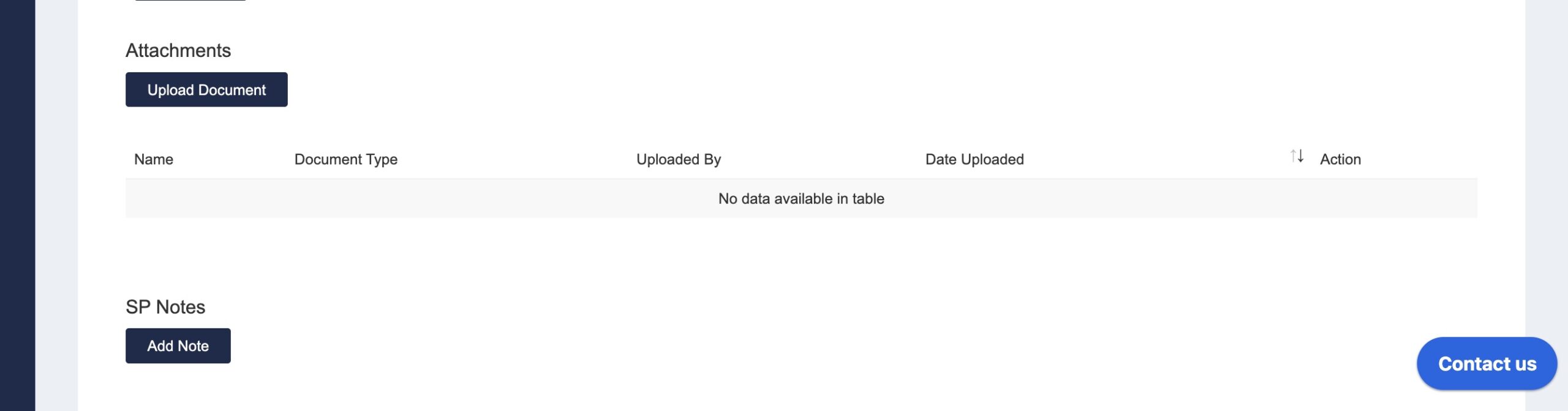
- During the whole process of the work order, you can provide more details for the Work Order by adding attachments. You can also view the attachments added by the admin.
- Click “Upload Document”.
- Select attachment types and upload.
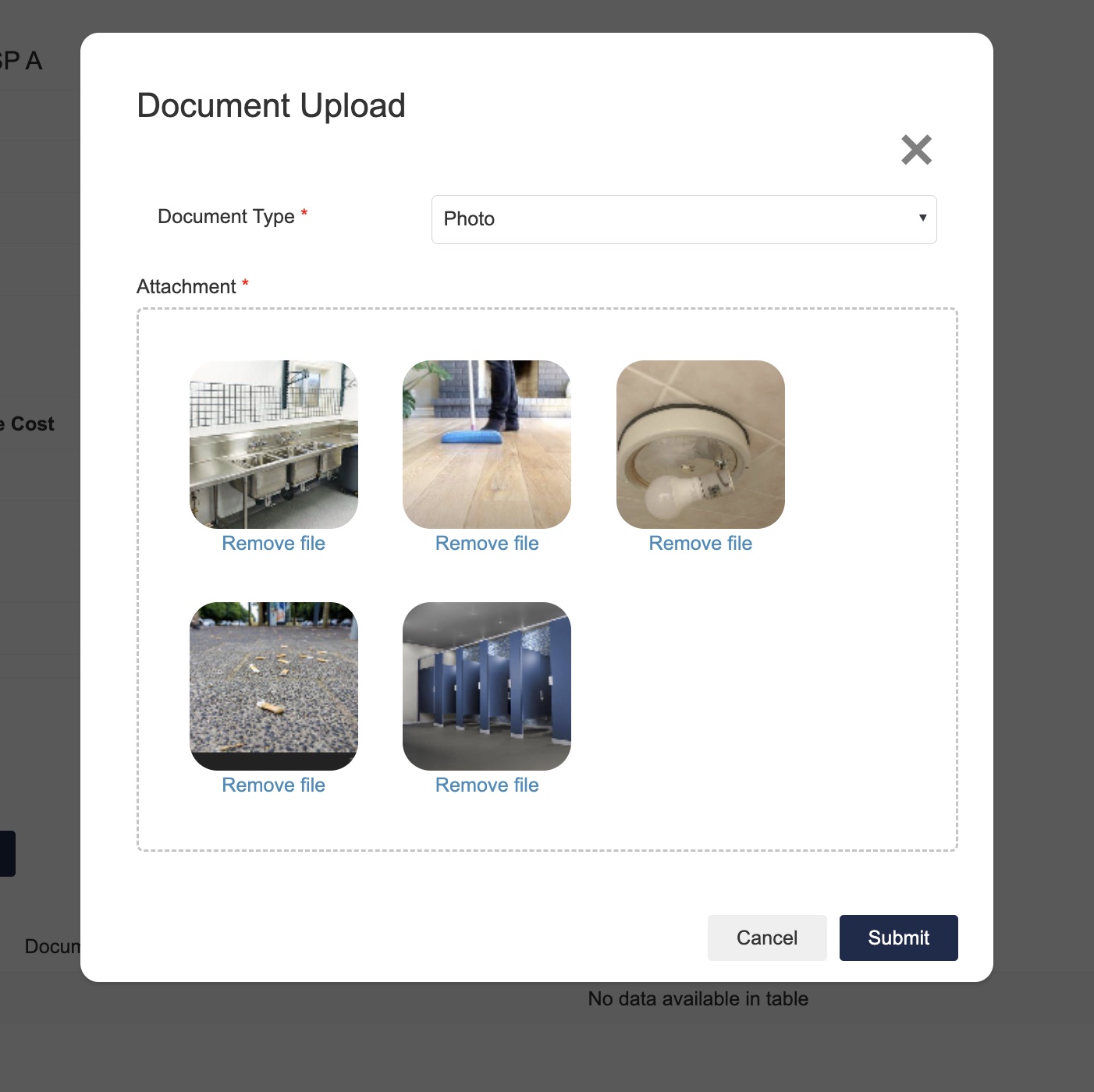
- Click “Upload Document”.