How Can We Help?
Create Checklists & Manage Schedules
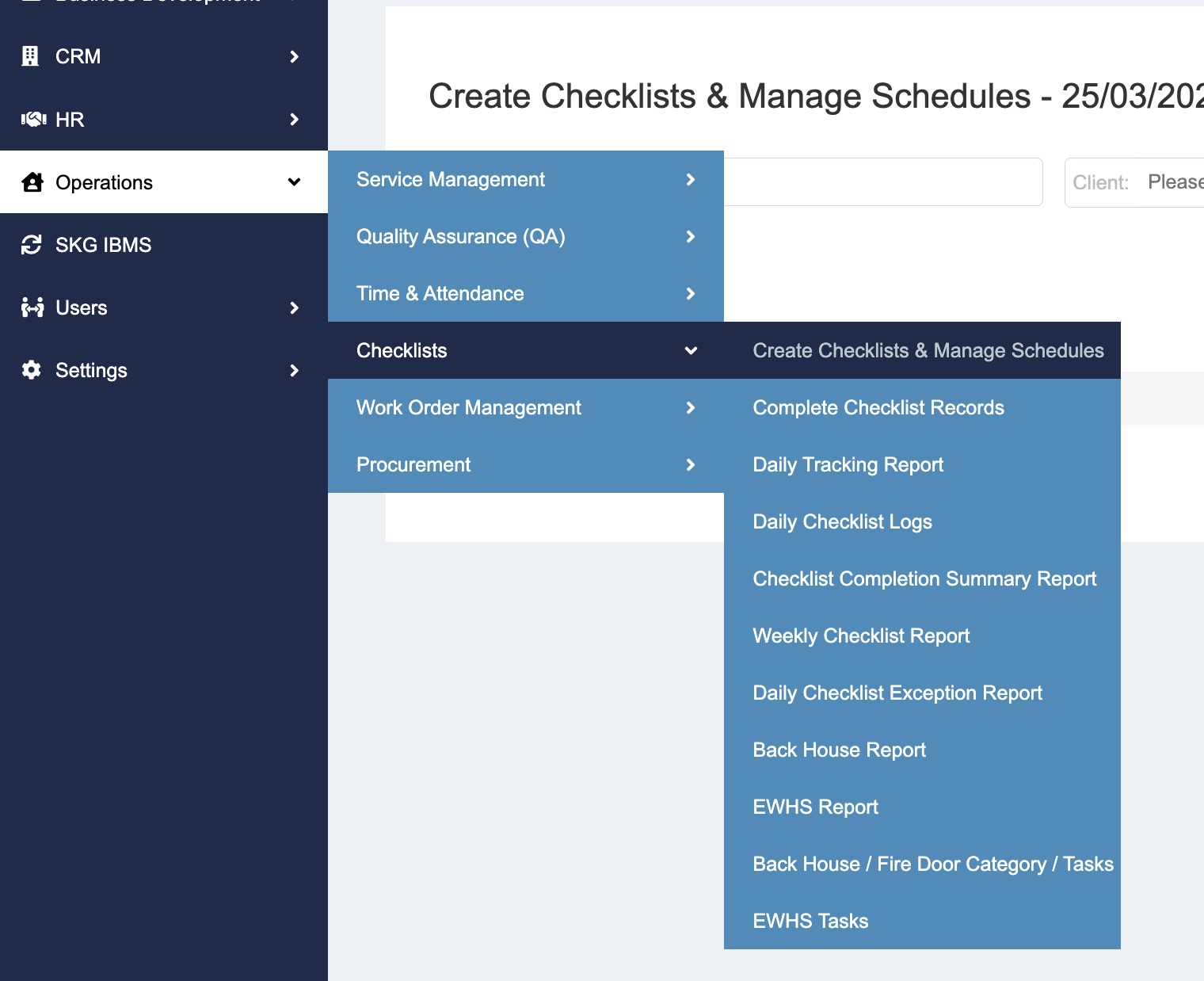
- Click Operation > Checklists > Create Checklists & Manage Schedules
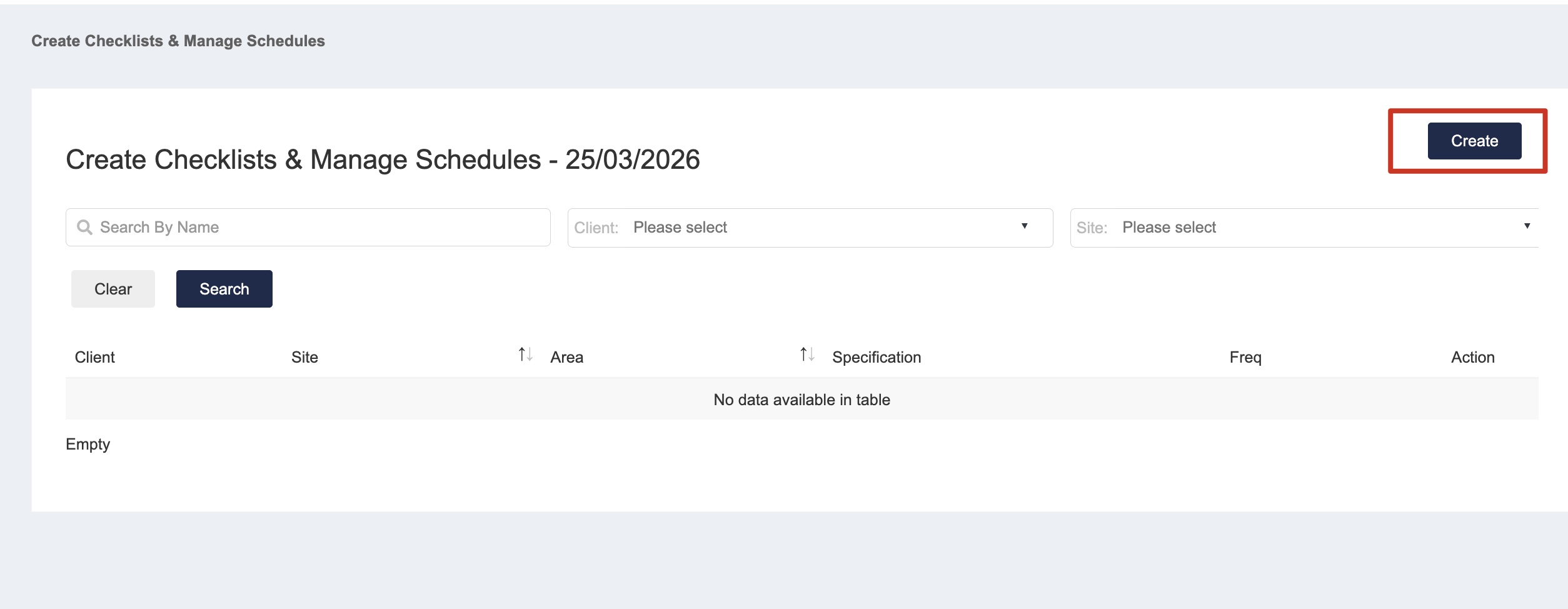
- Click “Create” to create new checklist item
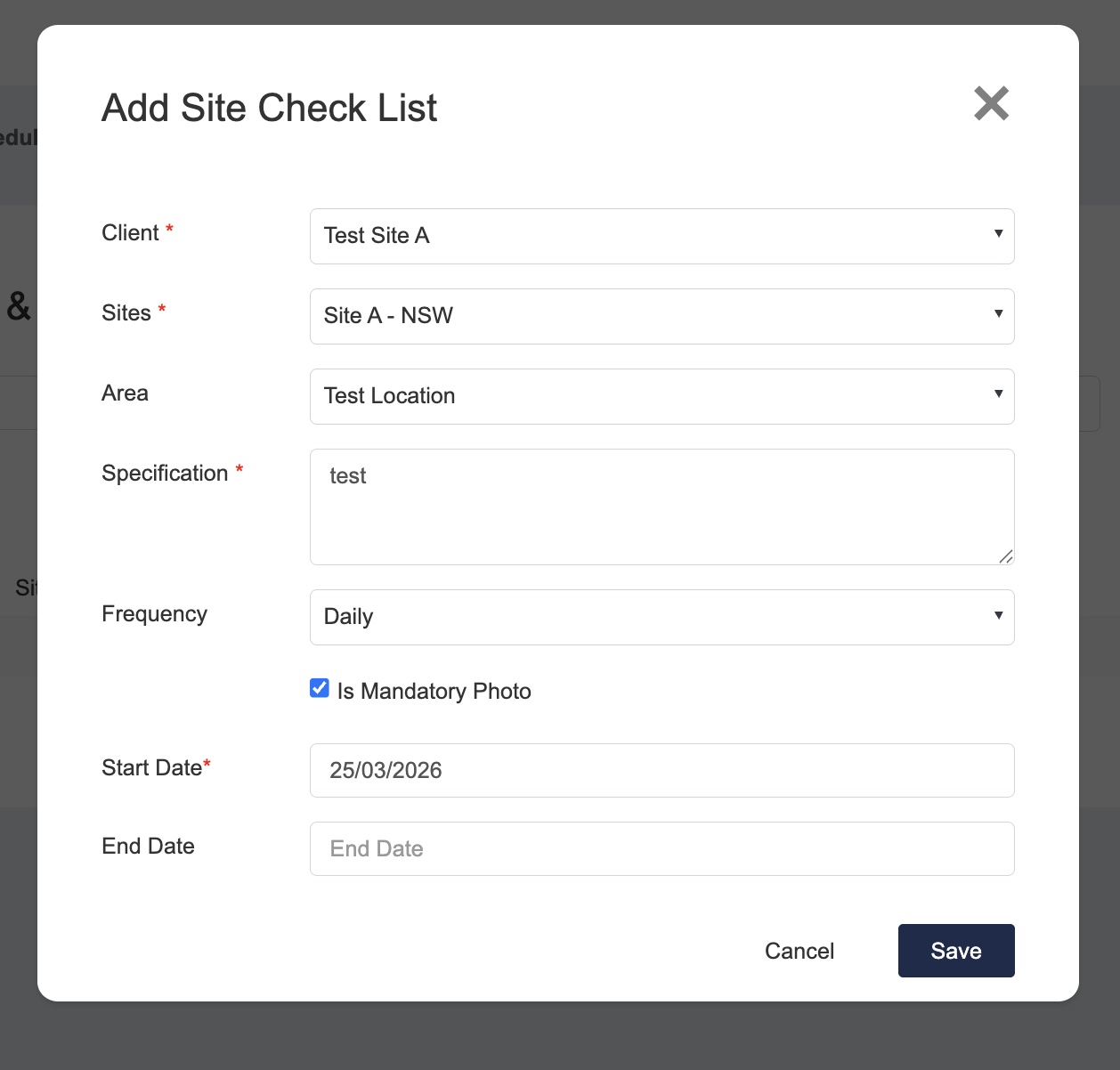
- Enter checklist and schedule details.
Select client and site, add area if applicable.
Set checklist frequency and start/end date.
Tick “Is Mandatory Photo” if completion of checklist needs evidence.
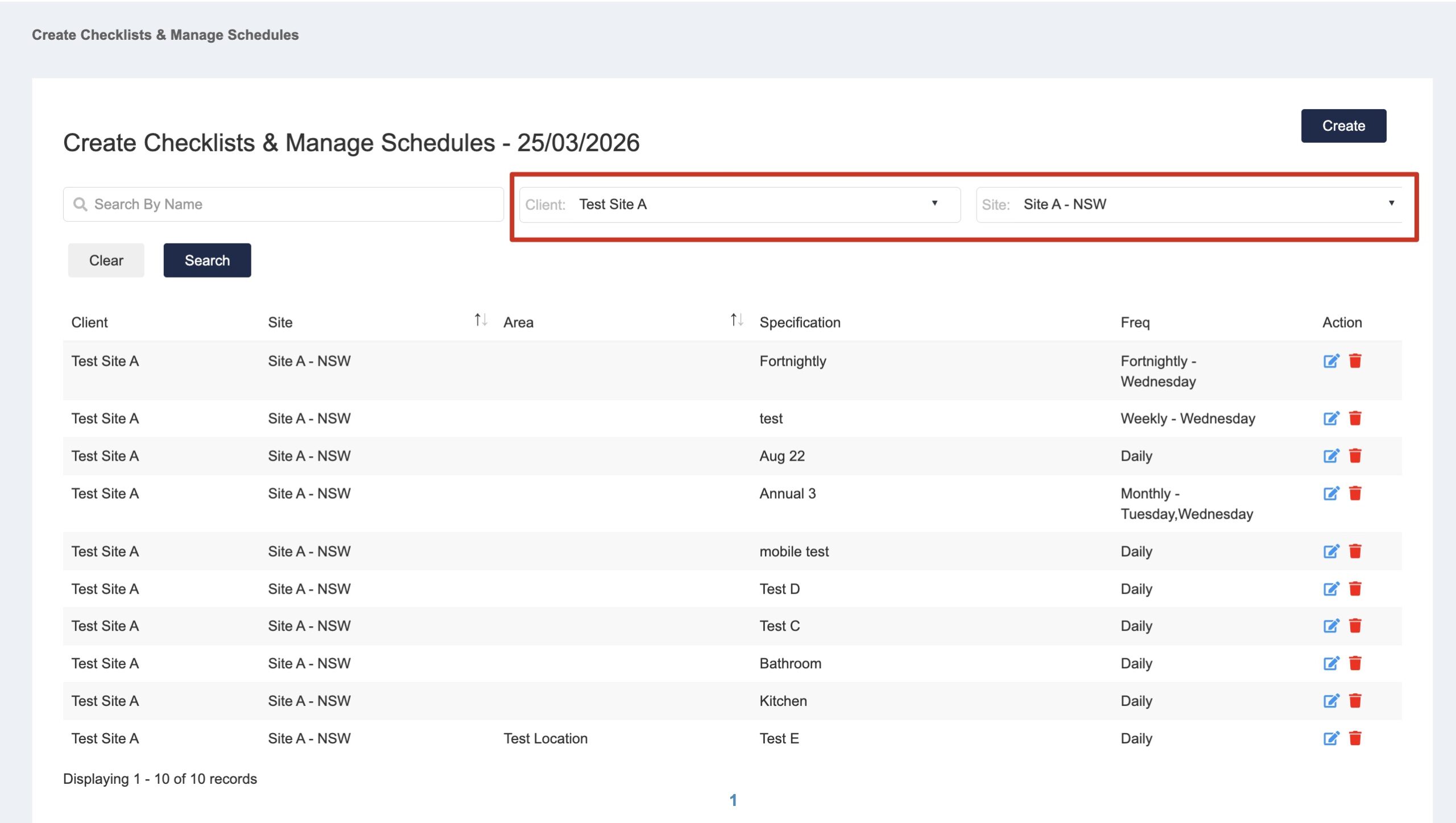
- Once the Checklist item is created, you can search by client/site to search for all checklist items created.
- And the corresponding checklist items will show in Operation > Complete Checklist Records
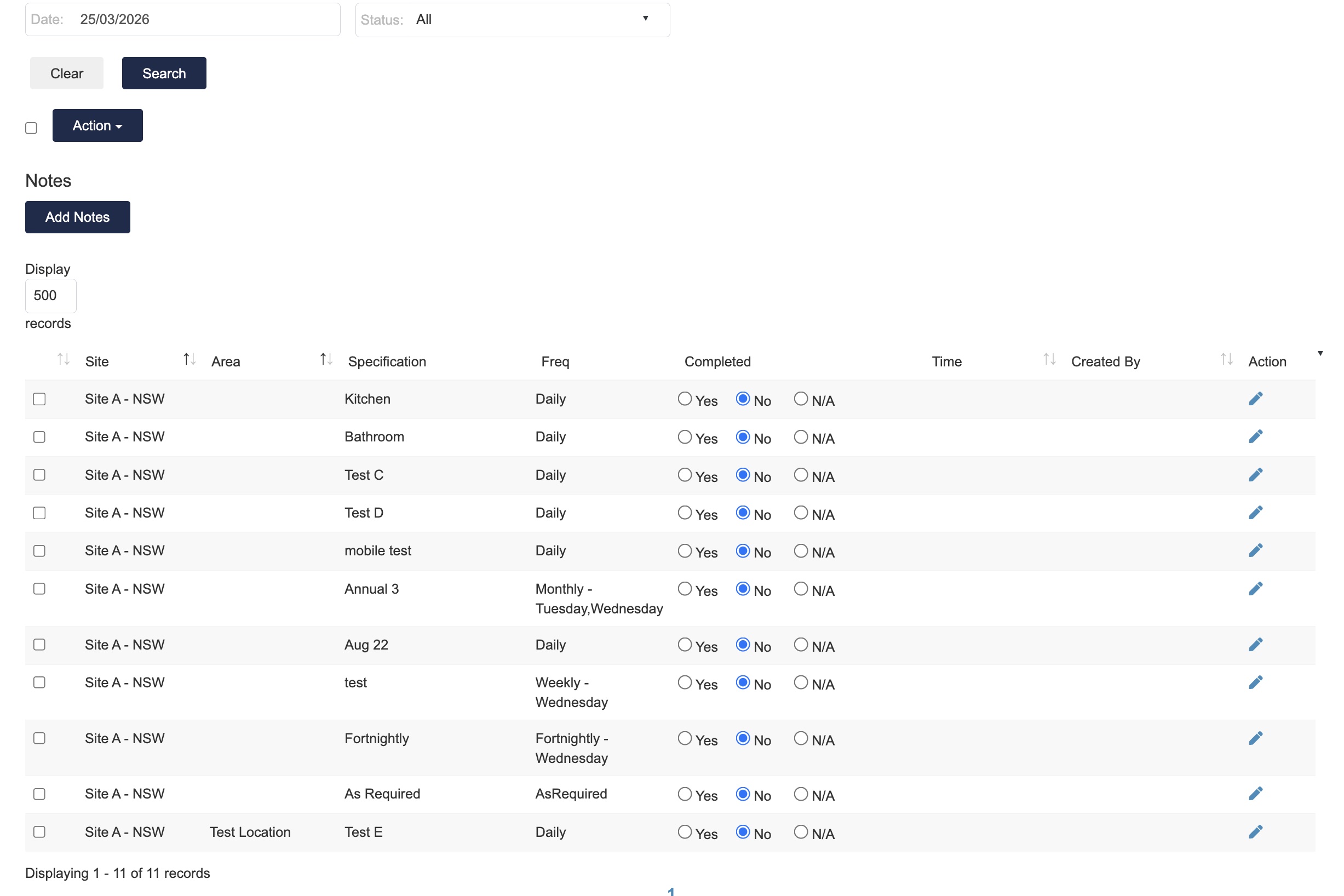
Checklist Fields details:
- Area
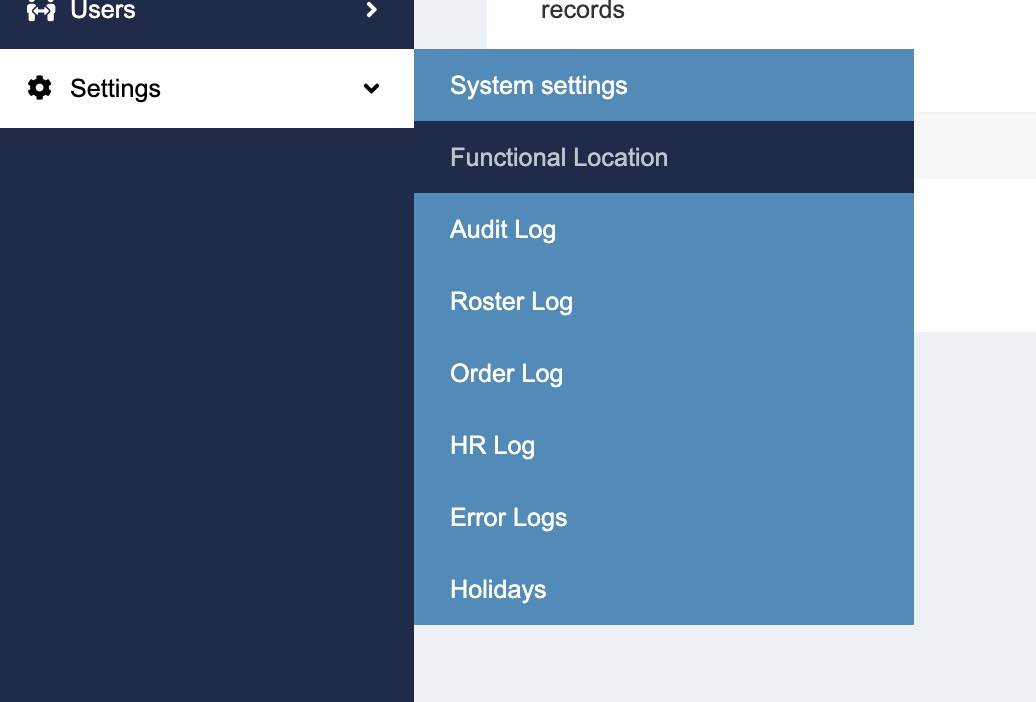
- Areas can be managed in Settings > Functional Location
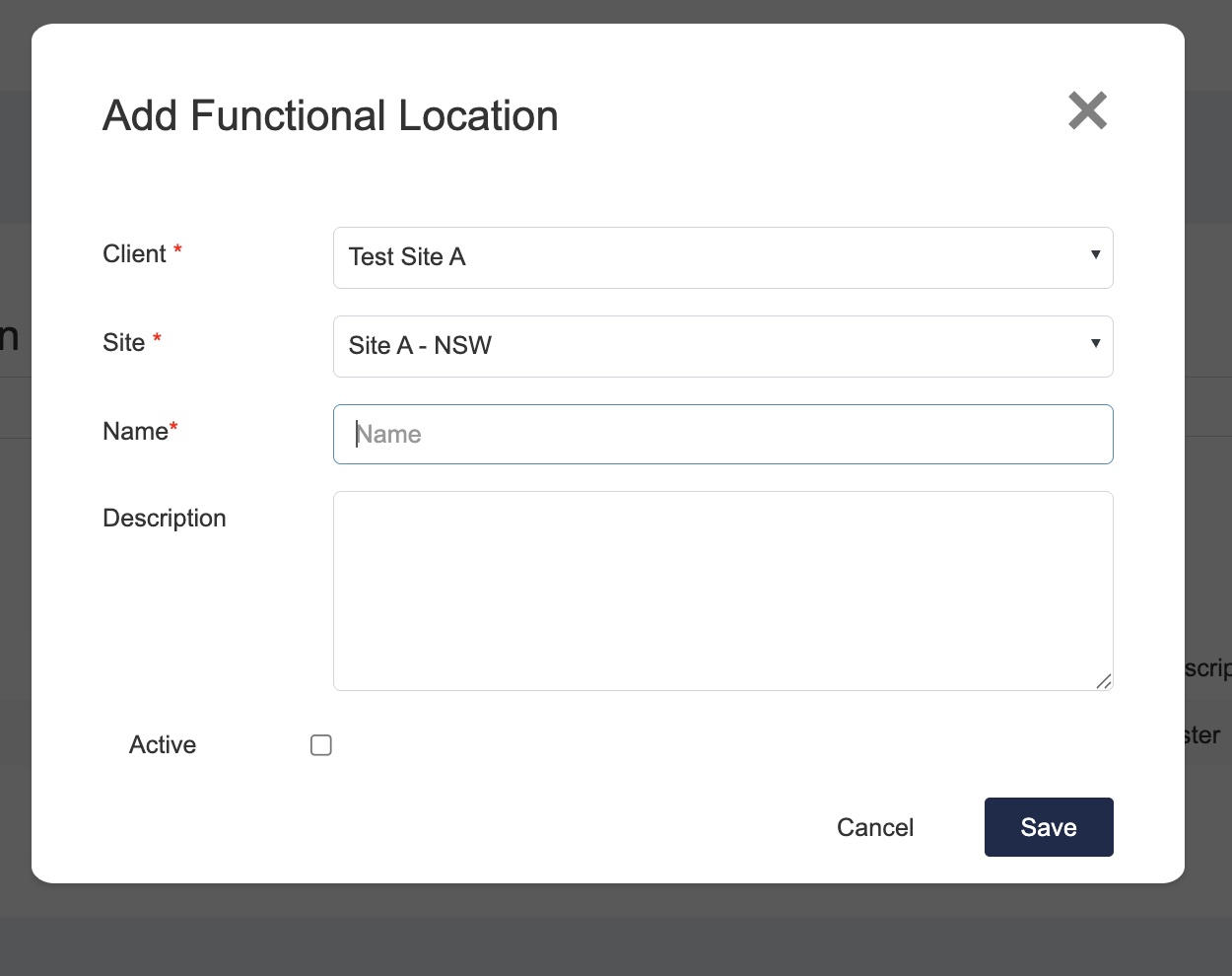
- Enter Client/Site and Location name. Make it active so that it can show in the “Area” list.
- Areas can be managed in Settings > Functional Location
- Frequency and Start/End Date
-
Frequency determines when the checklist item is shown. The start and end dates define the time period during which the checklist item will be available.
When the frequency is “Daily” or “As Required”, the item will appear every day. However, if the frequency is “As Required”, it does not need to be completed daily.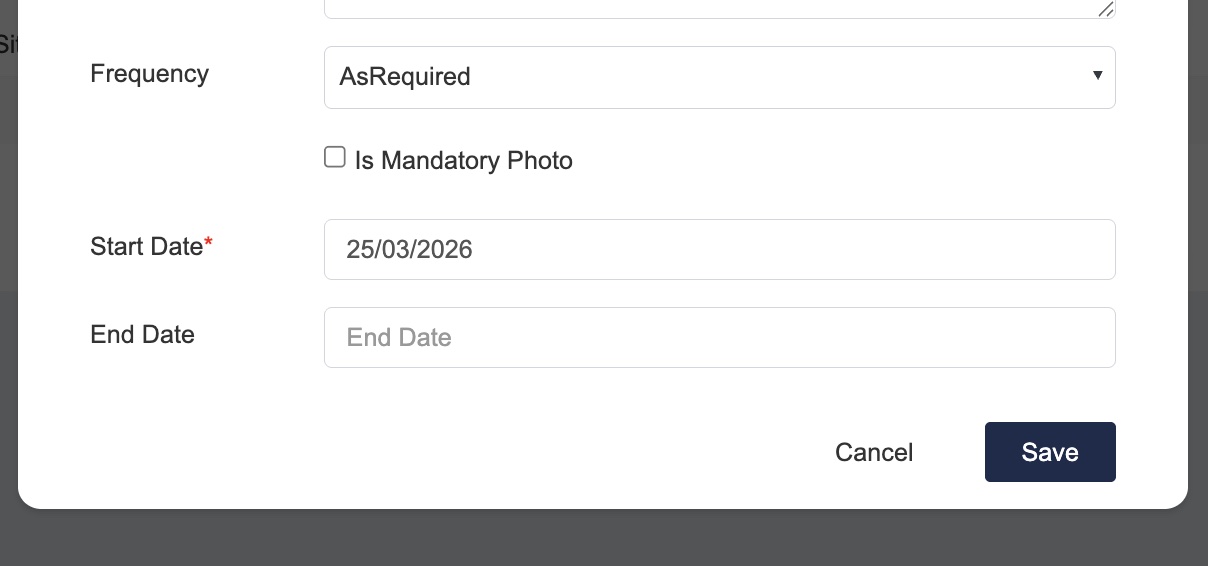
- If the frequency is not “Daily” or “As Required”, the item will appear on the selected day(s) of the week.
- If the frequency is “Monthly”, the task will appear in the last week of the month on the selected day of the week.
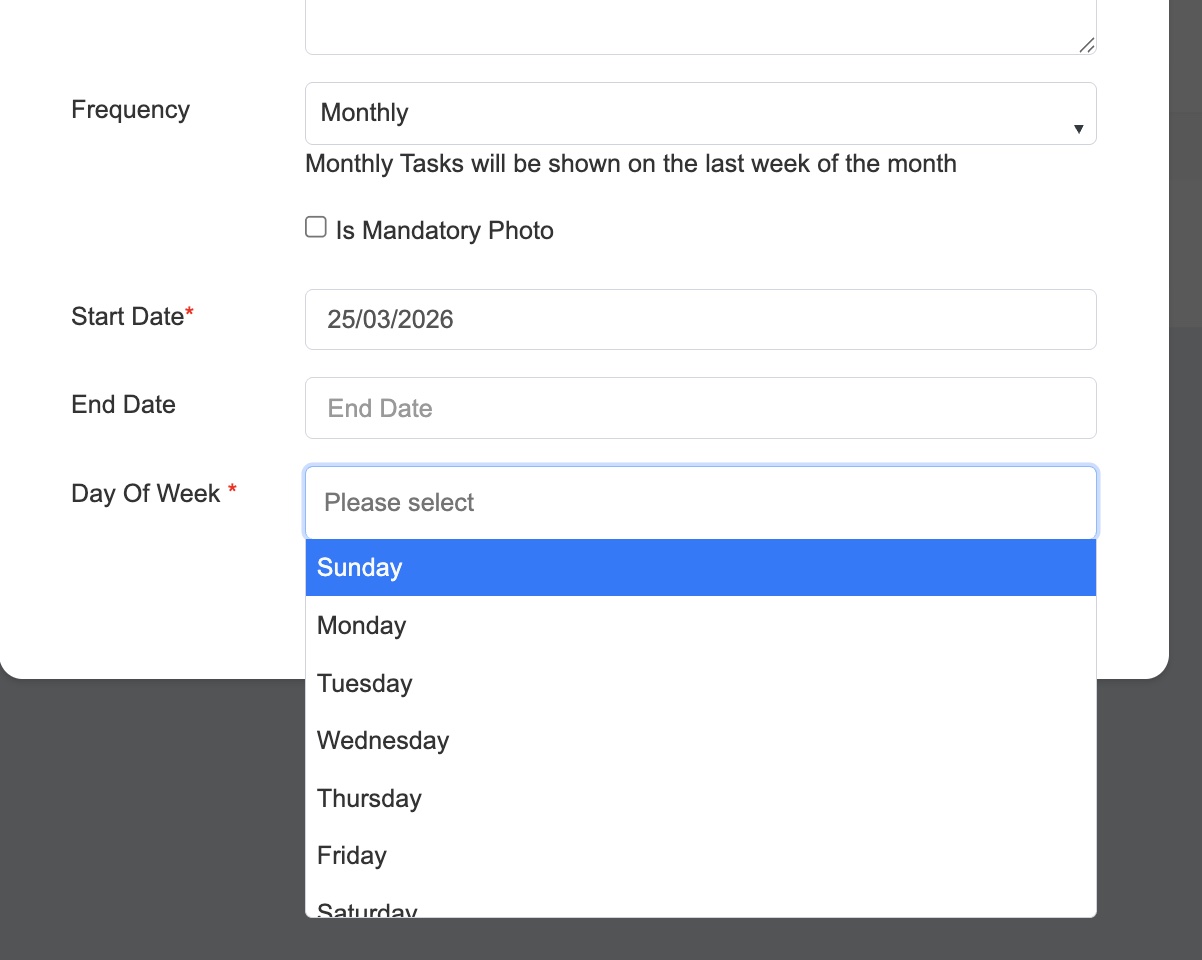
If the frequency is “Annually”, the task will appear in the last week of the December on the selected day of the week.
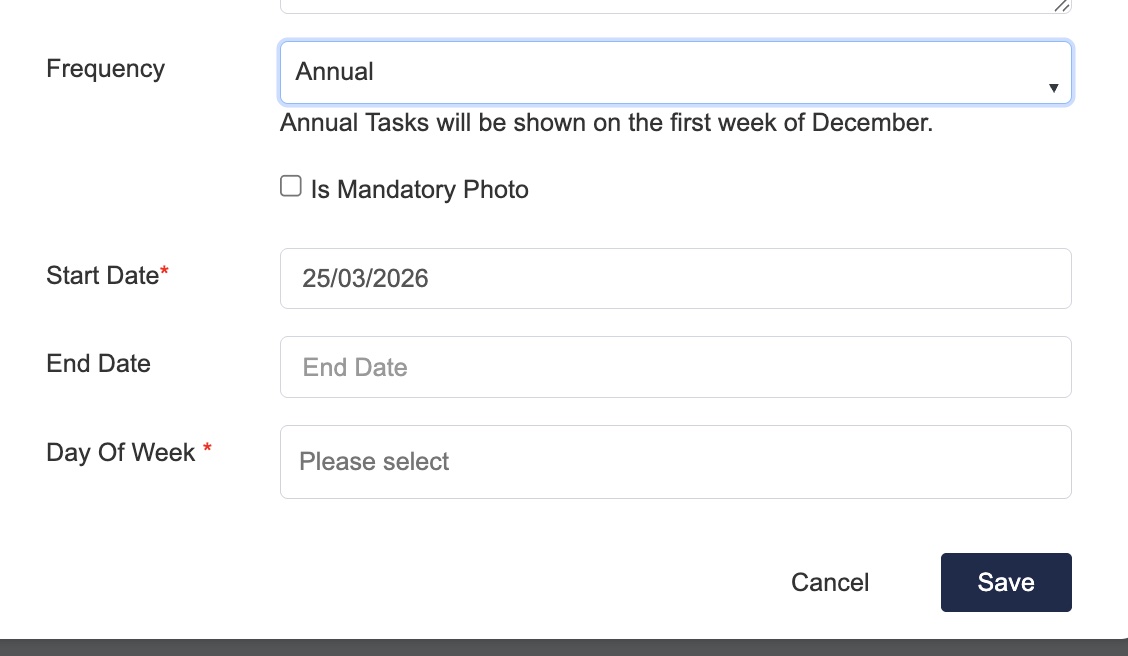
- If the frequency is “Monthly”, the task will appear in the last week of the month on the selected day of the week.
-
- Area